● Start · 10 minutes
Quick start
protected in ten minutes.
The shortest way from the ZIP to a working policy you can check from a terminal. If you are not sure your hosting qualifies, read Requirements first.
01The ten minutes
- Install and activate (Plugins → Add New Plugin → Upload Plugin → choose
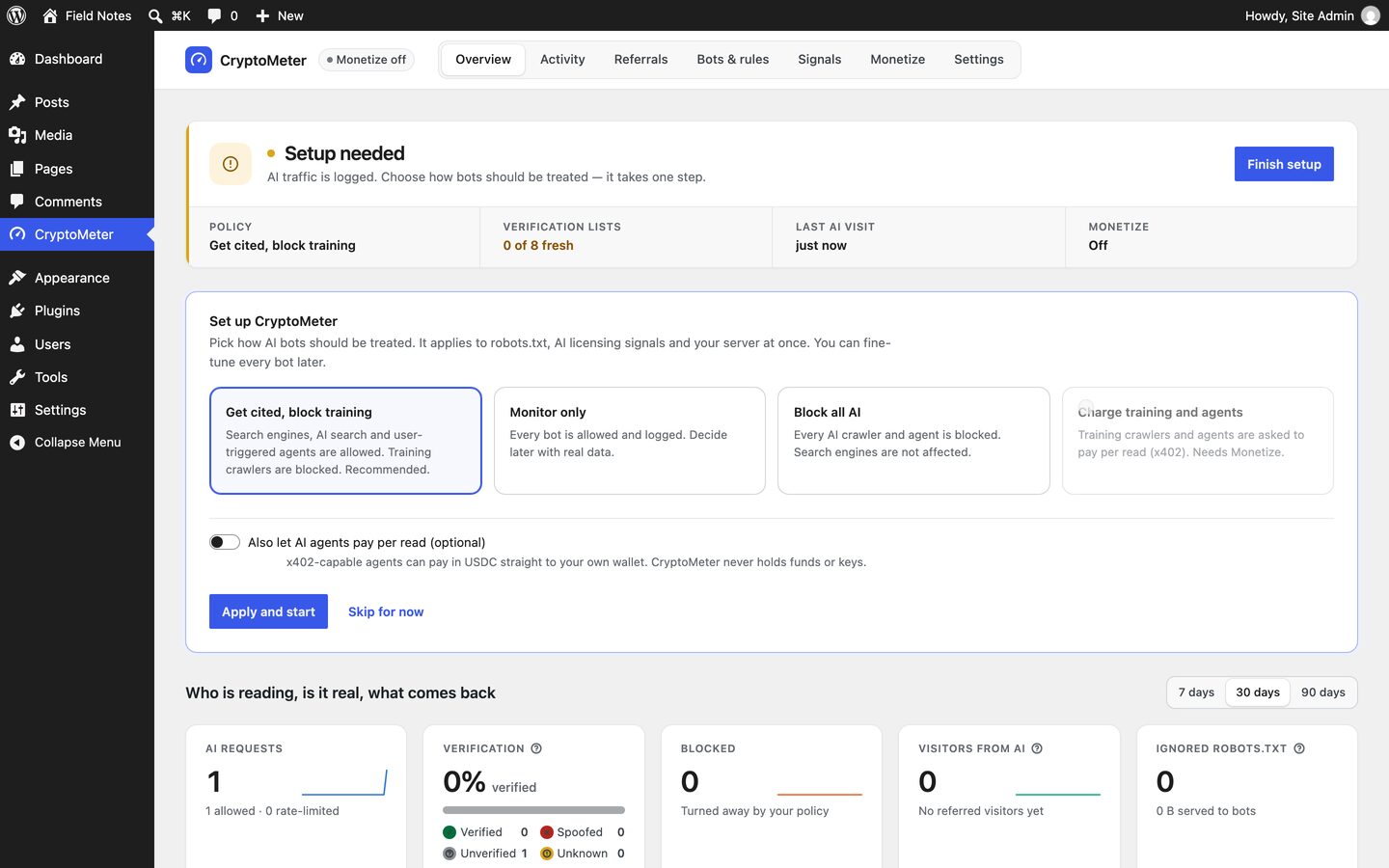
cryptometer.zip→ Install Now → Activate). You land on CryptoMeter → Overview. - Set up. In the Set up CryptoMeter card pick a preset. Get cited, block training is recommended and already active from the moment you activate. Leave Also let AI agents pay per read (optional) off unless you want Monetize. Press Apply and start.
- Load the official IP lists. Open Bots & rules → Verification sources and press Refresh now. Each list should show a green tick and a number of IP ranges. (They also refresh by themselves once a day.)
- Check your cache. Open Bots & rules → Server & cache rules, pick a published post and press Run loopback test. You want "WordPress answered the bot directly." If a cache is reported, see Page caches.
- Check it from a terminal (replace the address with one of your posts):
These three results were reproduced on a test install (WordPress 7.1.2, PHP 8.4.25).curl -i -A "Mozilla/5.0 (compatible; GPTBot/1.2; +https://openai.com/gptbot)" https://your-site.example/your-post/ # With the default preset: HTTP/1.1 403 Forbidden and the header x-cryptometer: block curl -s -o /dev/null -w "%{http_code}\n" -A "Mozilla/5.0" https://your-site.example/your-post/ # A normal visitor: 200 curl -s https://your-site.example/robots.txt # Shows "User-agent: GPTBot" / "Disallow: /" blocks and a Content-Signal line - Wait for data. The Overview and Activity screens fill as real bots visit. Nothing is estimated or made up; empty screens say "No AI visits yet".
Testing tip
Logged-in users are never logged or blocked. Test with a terminal or a private browser window.